
Getting Started
Creating a new Apple Account
The easiest way to create a new Apple Account is on the Apple website, which can be done from any device.
If your son is under 13, see: https://support.apple.com/en-us/102617
Otherwise,
Create your Apple Account on the web
Go to account.apple.com and click Create Your Apple Account.
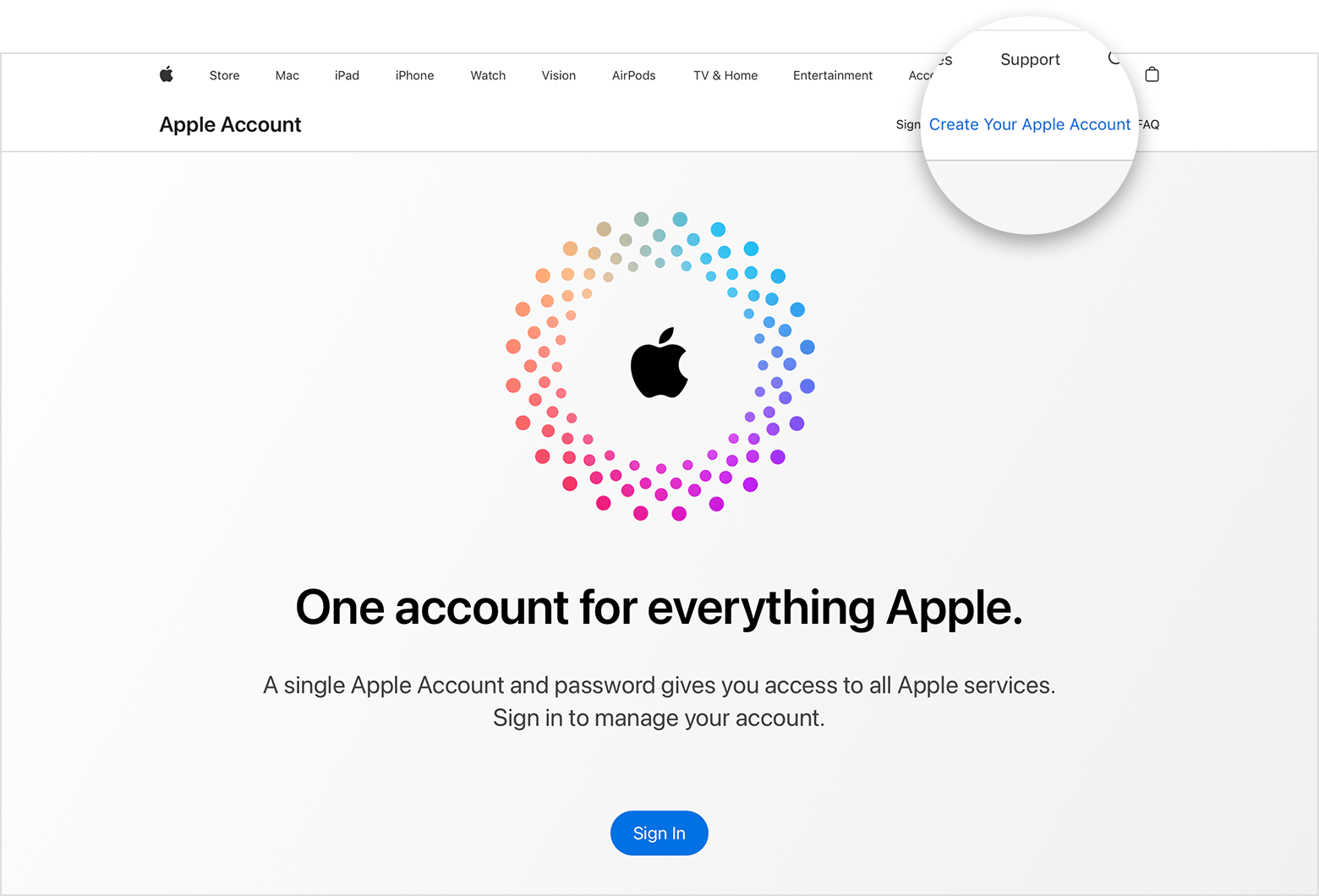
Follow the onscreen steps to provide an email address, create a strong password, and set your device region. This primary email address will be what you use to sign in to your Apple Account. It's recommended to use your school email for this.
Enter your birthday and a phone number that you can always access.
Check the boxes to subscribe to Apple Updates if you’d like. This keeps you up to date on the latest news, software, products, and services from Apple.
Click Continue.
Follow the onscreen steps to verify your email address and phone number.
After you verify your email address, you can continue to adding the new Apple Account to Family Sharing.
Start a family group
One adult in the family — the family organizer — can set up Family Sharing for the group from their iPhone, iPad, or Mac.
On your iPhone or iPad
Open the Settings app, then tap your name.
Tap Family (or Family Sharing), then tap Set Up Your Family.
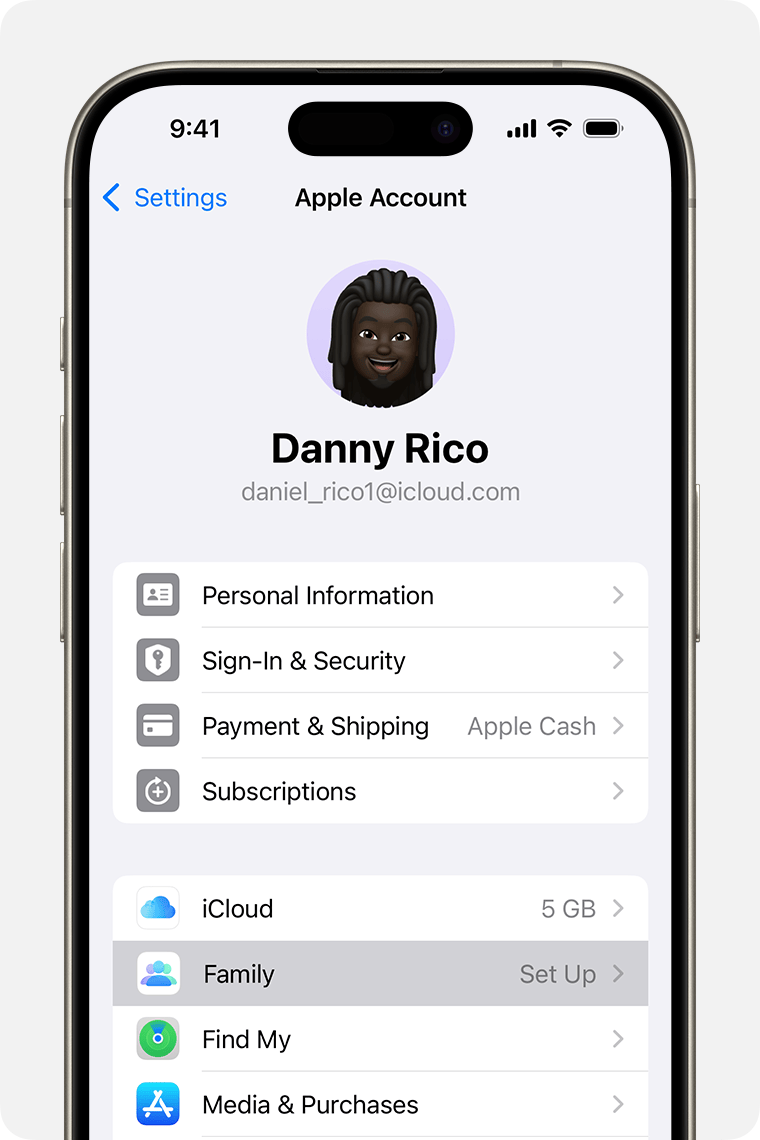
Follow the onscreen instructions to set up your family and invite your family members.
If you already have a family group
On your iPhone or iPad with iOS 16 or later
Open the Settings app, then tap Family.
Tap the Add Member button.
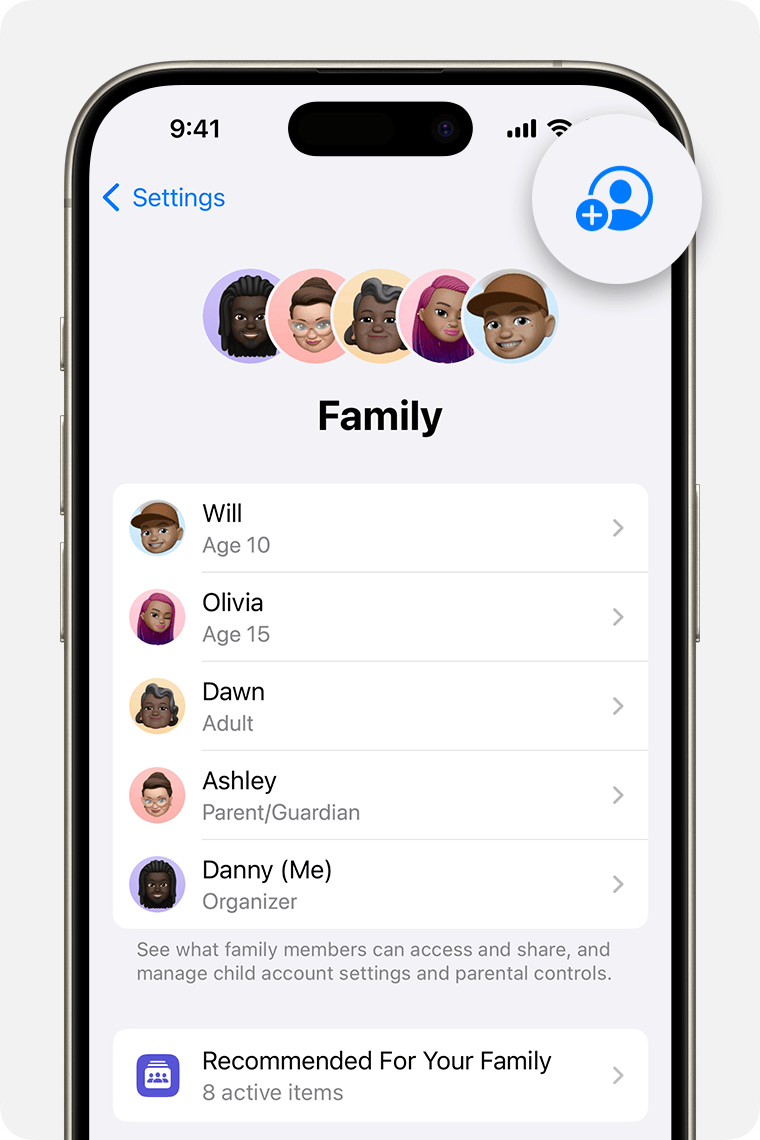
Tap Invite People. They can enter their password used for their Apple Account on your device to accept the invitation.
Follow the onscreen instructions to set up parental controls, location sharing, and more.