
Content Restrictions
With Screen Time, you can turn on Content & Privacy Restrictions to manage content, apps, and settings on your child's device. You can also restrict explicit content, purchases and downloads, and changes to privacy settings.
Turn on Content & Privacy Restrictions
When you set up Screen Time on your child's device, you can set age-related restrictions for content, purchases and downloads, and privacy settings. If you chose to set up later, you can turn on Content & Privacy Restrictions in Screen Time.
Open the Settings app, then tap Screen Time.
Under Family, choose your child's name.
Tap Content & Privacy Restrictions. If asked, enter your Screen Time passcode, then turn on Content & Privacy Restrictions.
If you turn off Content & Privacy Restrictions, any parental controls that you turned on pause until you turn on Content & Privacy Restrictions again.
Turn on parental controls for your child's device
After you turn on Content & Privacy Restrictions, you can set up specific parental controls.
To make sure that your parental control settings sync across the devices in your Family Group, update all of those devices to the latest software version before turning on parental controls or changing your parental controls settings.
Prevent App Store purchases
You can prevent your child from being able to install or delete apps, make in-app purchases in apps installed from the App Store, and more.
Open the Settings app, then tap Screen Time.
Tap Content & Privacy Restrictions. If asked, enter your passcode.
Tap iTunes & App Store Purchases (or App Installations & Purchases).
Choose a setting and set to Don't Allow.
You can also change your password settings for additional purchases from iTunes, App Store, Book Store, or Apple TV app. Under Require Password, choose Always Require or Don't Require.
Learn more about managing app installation preferences for your child's iPhone in the EU
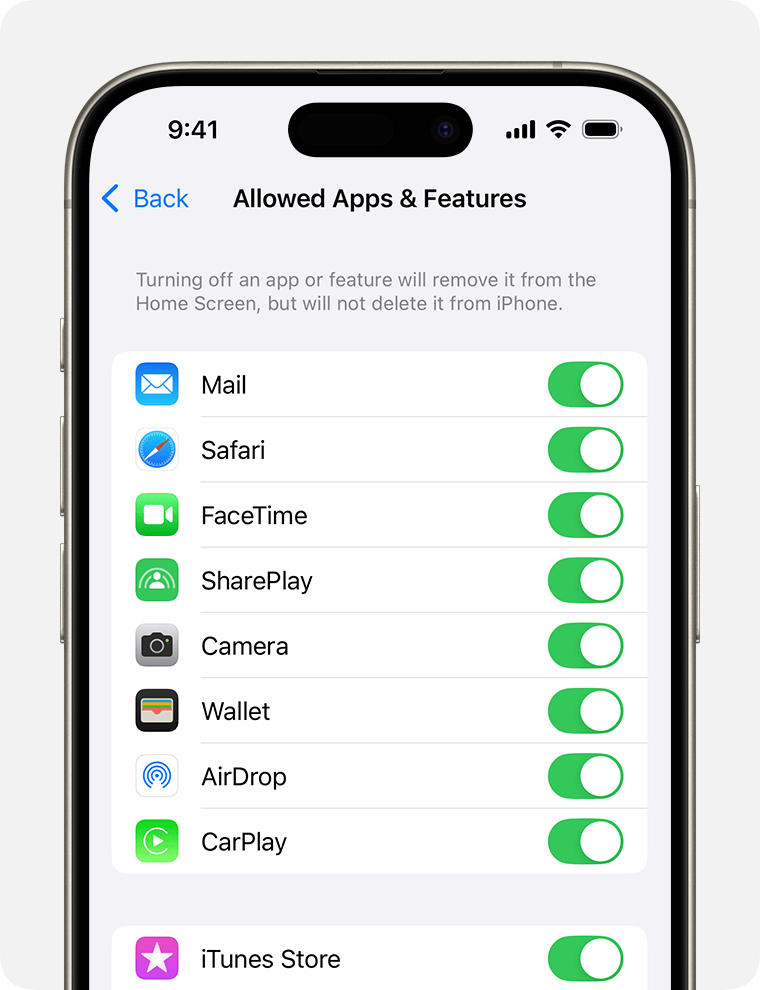
Allow built-in apps and features
You can restrict the use of built-in apps or features. If you turn off an app or feature, the app or feature won't be deleted, it's just temporarily hidden from your Home Screen. For example, if you turn off Mail, the Mail app won't appear on your Home Screen until you turn it back on.
Open the Settings app, then tap Screen Time.
Tap Content & Privacy Restrictions.
Enter your Screen Time passcode.
Tap Allowed Apps & Features.
Select the apps that you want to allow.
Prevent explicit content and content ratings
You can also prevent the playback of music with explicit content and movies or TV shows with specific ratings. Apps also have ratings that can be configured using content restrictions.
Open the Settings app, then tap Screen Time.
Tap Content & Privacy Restrictions, then tap App Store, Media, Web, & Games.
Choose the settings that you want for each feature or setting under Allowed Store Content.
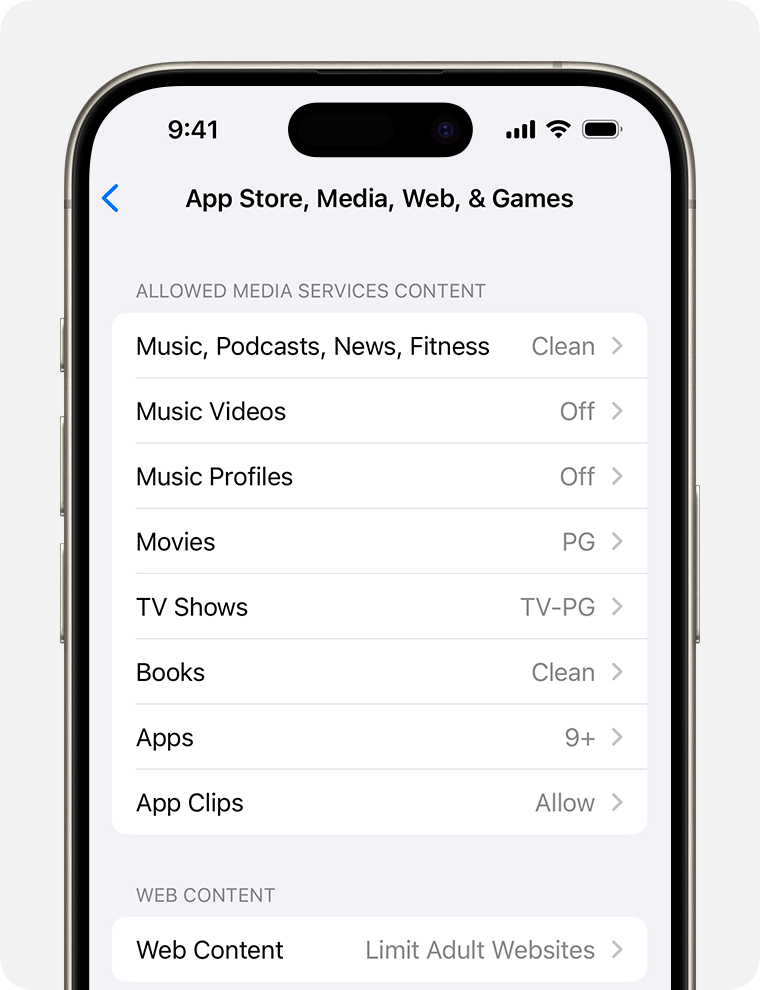
You can restrict these types of content:
Music, Podcasts, News, Fitness: Prevent the playback of music, music videos, podcasts, news, and workouts containing explicit content
Music Videos: Prevent finding and viewing music videos
Music Profiles: Prevent sharing what you're listening to with friends and seeing what they're listening to
Movies: Prevent movies with specific ratings
TV Shows: Prevent TV shows with specific ratings
Books: Prevent content with specific ratings
Apps: Prevent apps with specific ratings (or Unrated apps in the EU)
App Clips: Prevent app clips with specific ratings
Prevent web content
iOS and iPadOS can automatically filter website content to limit access to adult content in Safari and other apps on your device. You can also add specific websites to an approved or blocked list, or you can limit access to only approved websites.
Open the Settings app, then tap Screen Time.
Tap Content & Privacy Restrictions and enter your Screen Time passcode.
Tap App Store, Media, Web, & Games.
Tap Web Content, then choose Unrestricted, Limit Adult Websites, or Only Approved Websites.
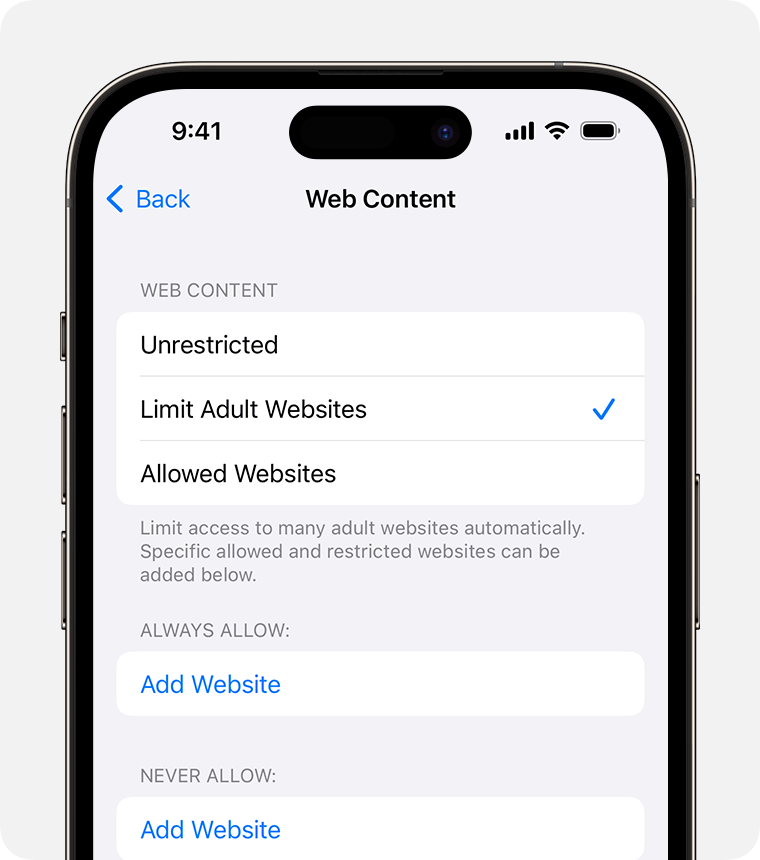
Depending on the access you allow, you might need to add information, like the website that you want to restrict.
Restrict Intelligence & Siri
Open the Settings app, then tap Screen Time.
Tap Content & Privacy Restrictions, then tap Intelligence & Siri.
Choose your settings.
You can allow or disallow these Intelligence & Siri features:
Image Creation
Writing Tools
ChatGPT Integration
Siri & Dictation
Web Search Content
Explicit Language
Math Results
Restrict Games
These restrictions apply only to games that use Game Center features.
Open the Settings app, then tap Screen Time.
Tap Content & Privacy Restrictions, then tap App Store, Media, Web, & Games.
Scroll down to Game Center, then choose your settings.
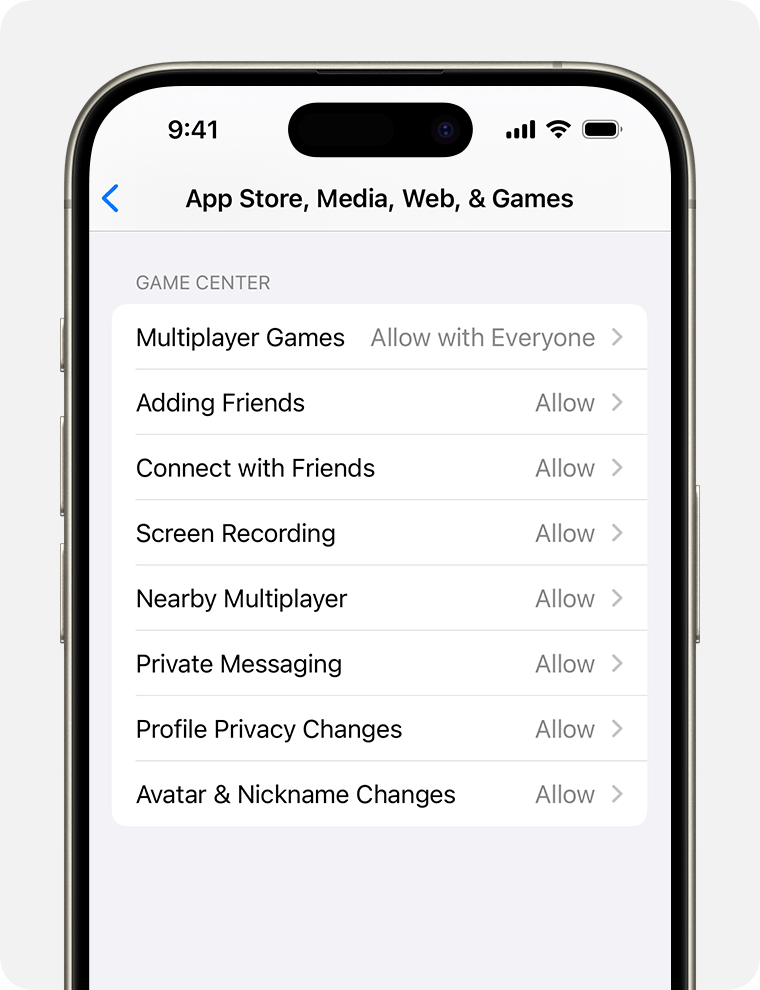
You can restrict these Game Center features:
Multiplayer Games: Prevent the ability to play multiplayer games with everyone, allow with friends only, or allow with anyone
Adding Friends: Prevent the ability to add friends to Game Center
Connect with Friends: Prevent the ability to share a Game Center friend list with third-party games
Screen Recording: Prevent the ability to capture the screen and sound
Nearby Multiplayer: Prevent the ability to enable the nearby setting
Private Messaging: Prevent the ability to voice chat or send or receive custom messages with game and friend invitations
Profile Privacy Changes: Prevent the ability to change profile privacy settings
Avatar & Nickname Changes: Prevent the ability to change Game Center avatars and nicknames