
Printing from your iPad
The main spot on campus to print is in the Moody Library.
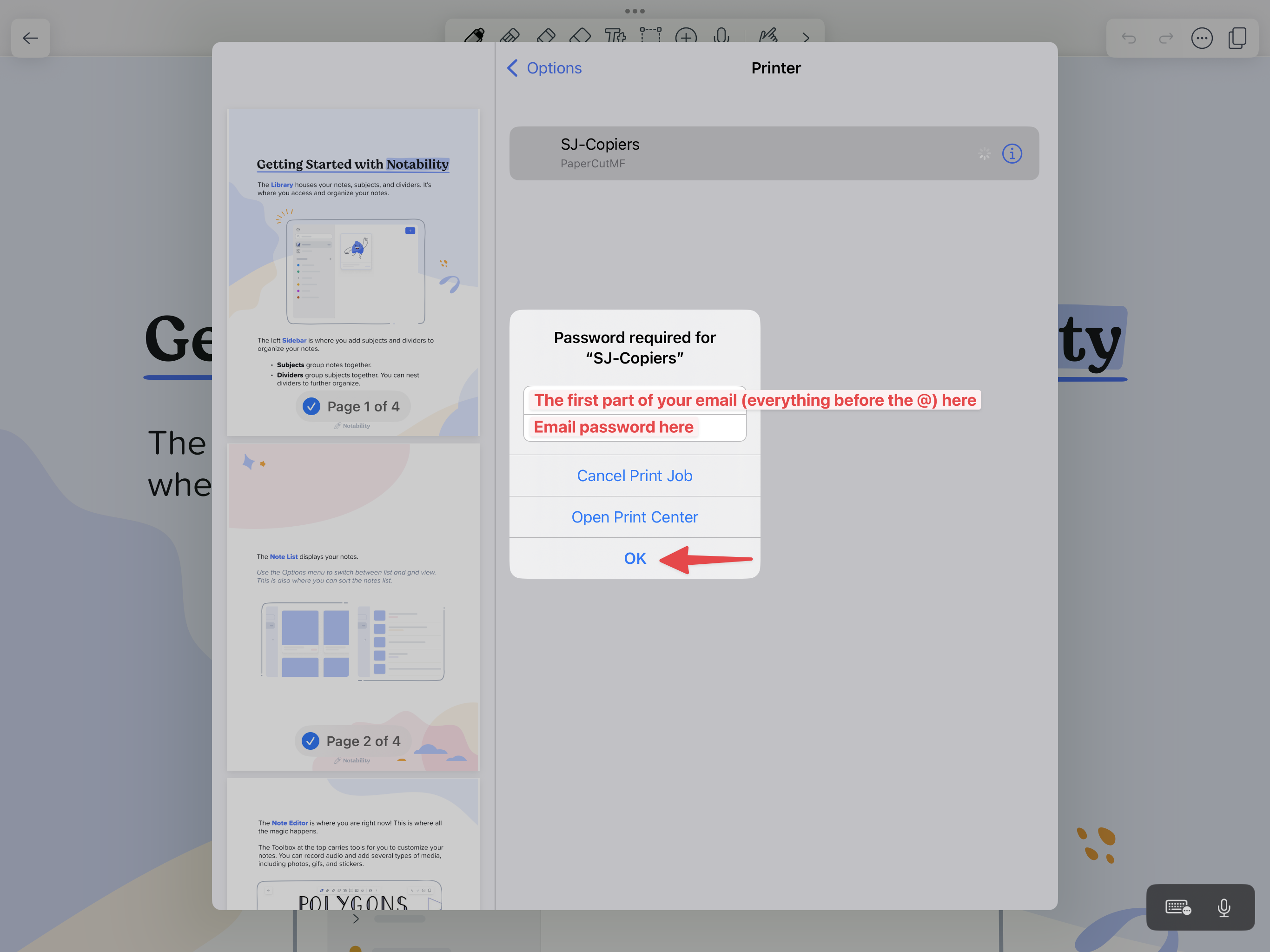
The way printing works is you print to 'SJ-Copiers' and then have until the end of the day to go to a print release station and actually print out the document. When you send the print job to SJ-Copiers, your iPad will prompt for a username & password the first time. The username is the first part of your email (everything before the @) and the password is your Google password.
There's a touchscreen release station that you scan or type out your ID at after sending your print job, and when it releases it will print from one of the two available printers next to it (labeled A & B.) If someone's job is already printing you can still release yours at the station and it will print from the next available printer.
Below are the steps to print for the first time
Open the app that you want to print from (see Notability as an example below.)
To find the print option, tap the app’s Share button or the Actions button.
Scroll down and tap Print. If you can’t find the print option, check the app’s User Guide or Help section. Not all apps support printing.
Select SJ-Copiers as the printer and if prompted enter your username & password (first part of email before the @ and your Google password) and tap OK.
Head to the release station and scan your ID, follow the prompts.
Example
Here's how to print from Notability:
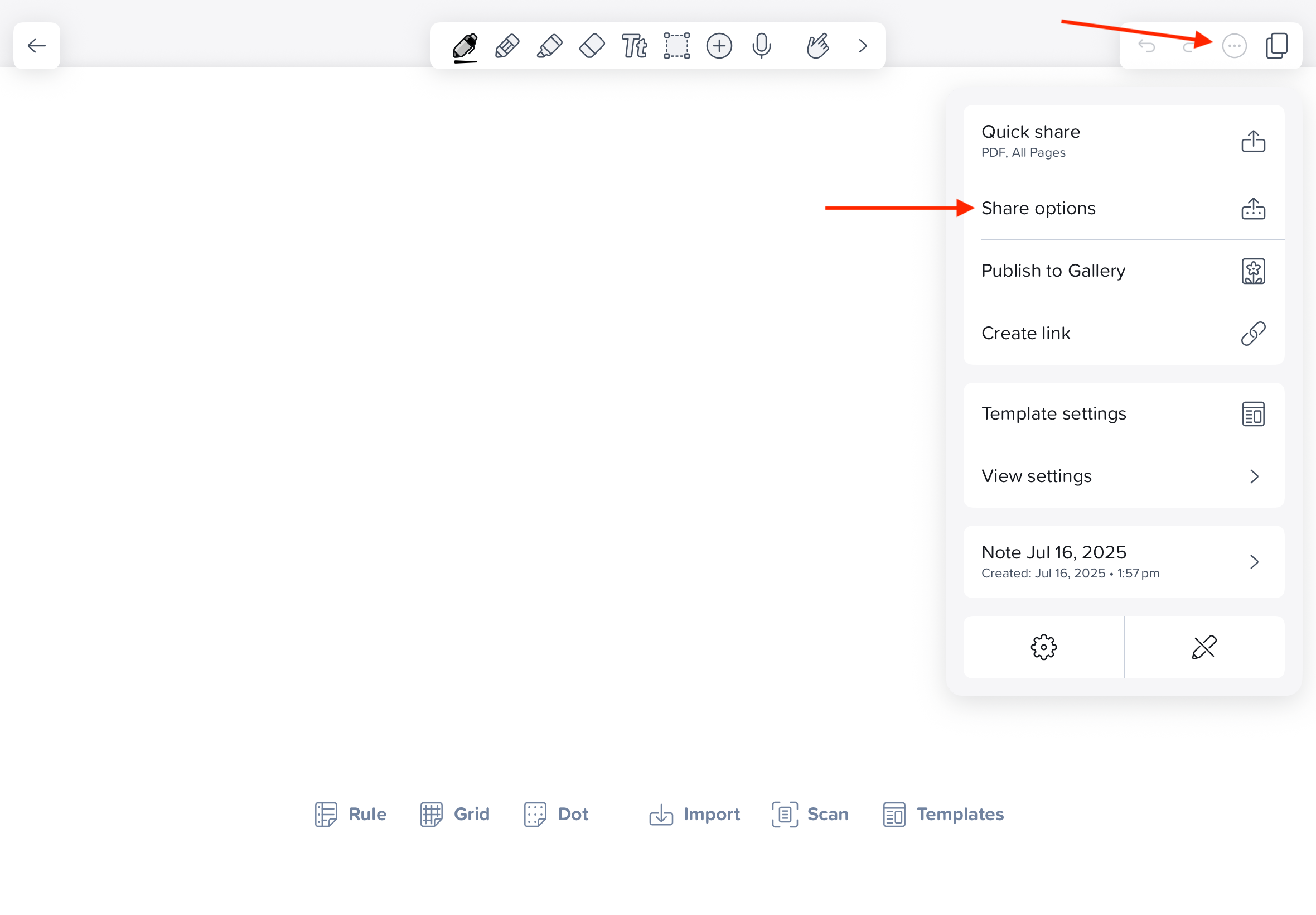
Open the note you want to print, and tap the 3 dot menu in the top right and tap Share options
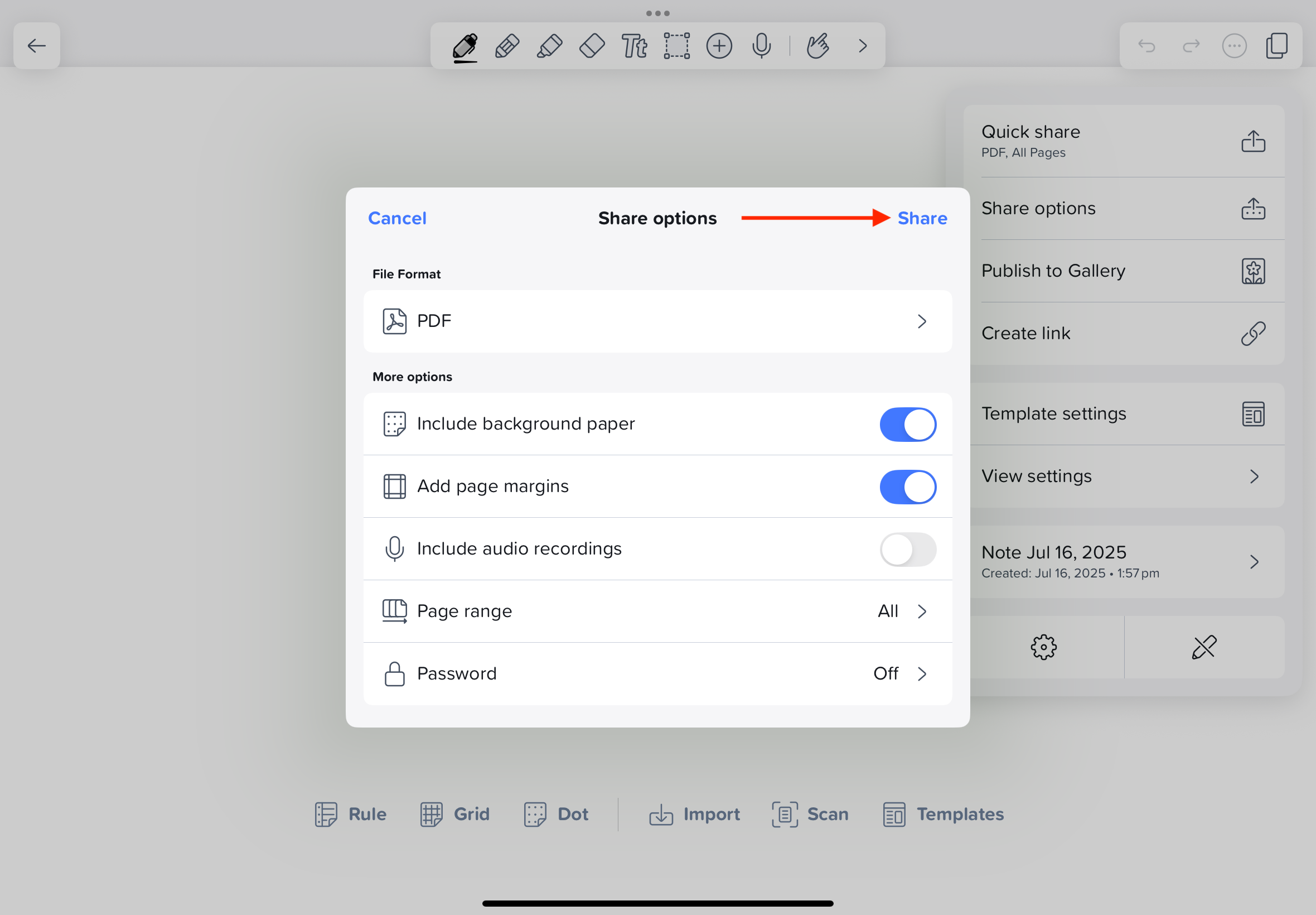
Change any options here (page range, etc.) and then tap Share
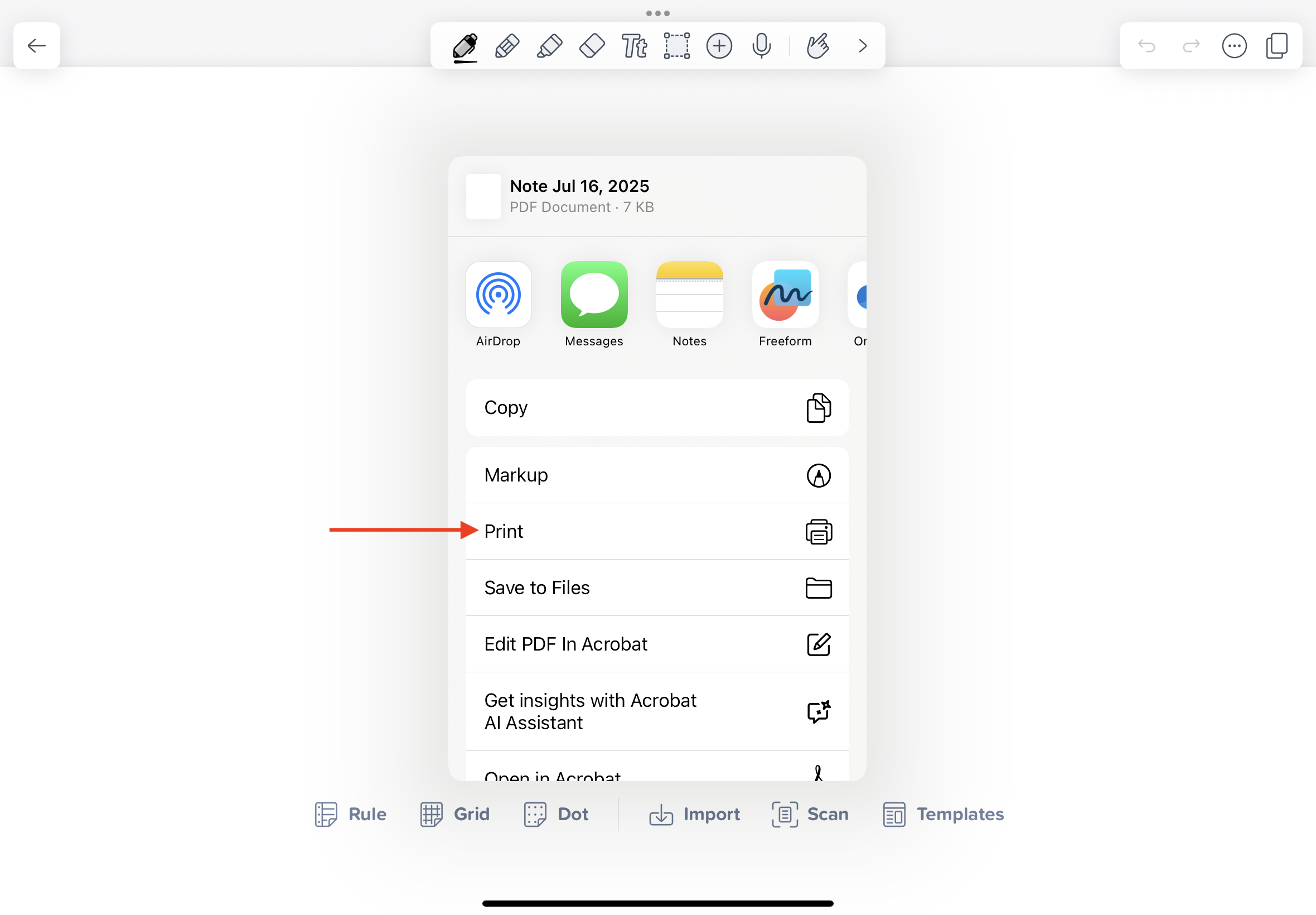
Select Print from the share menu
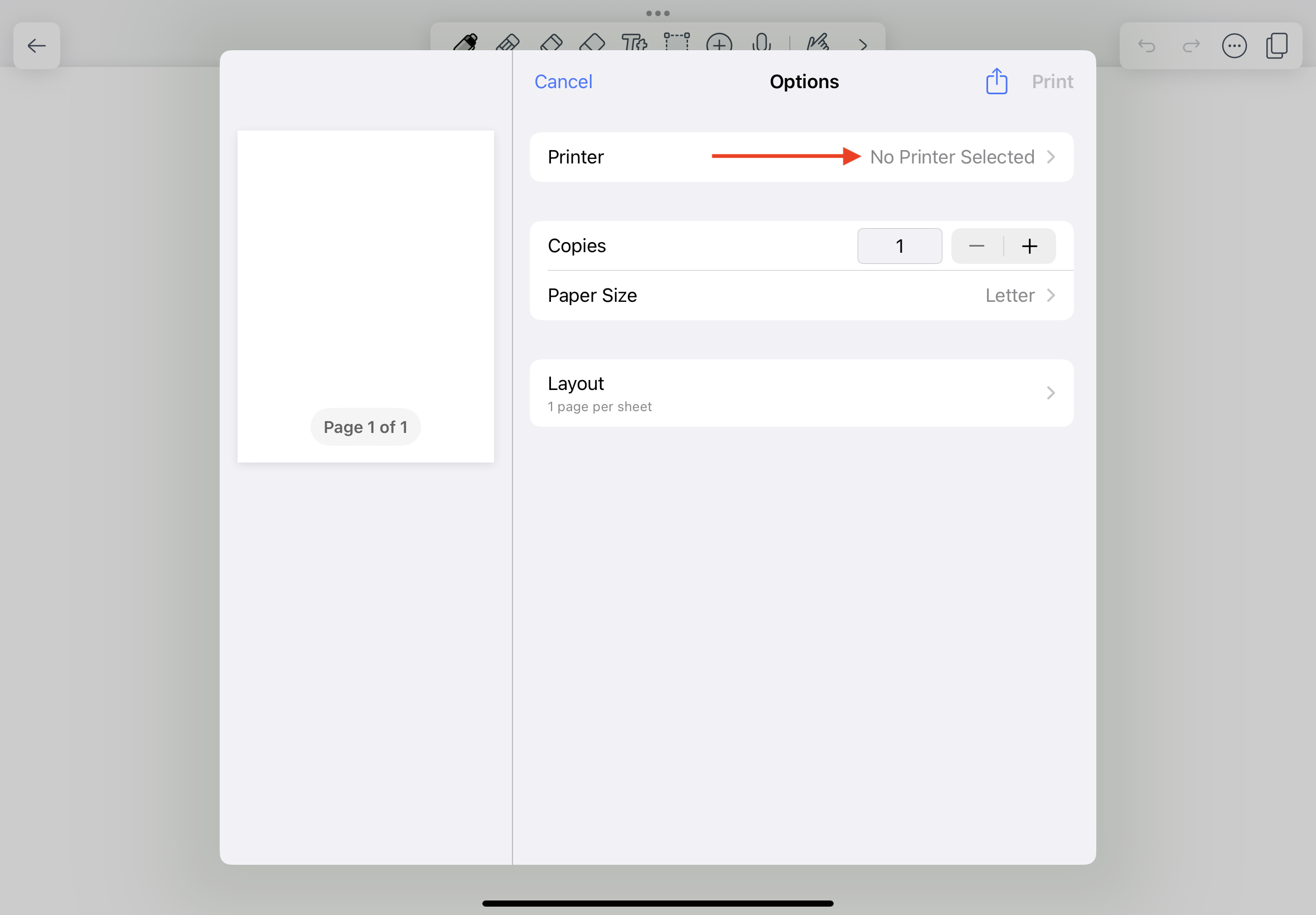
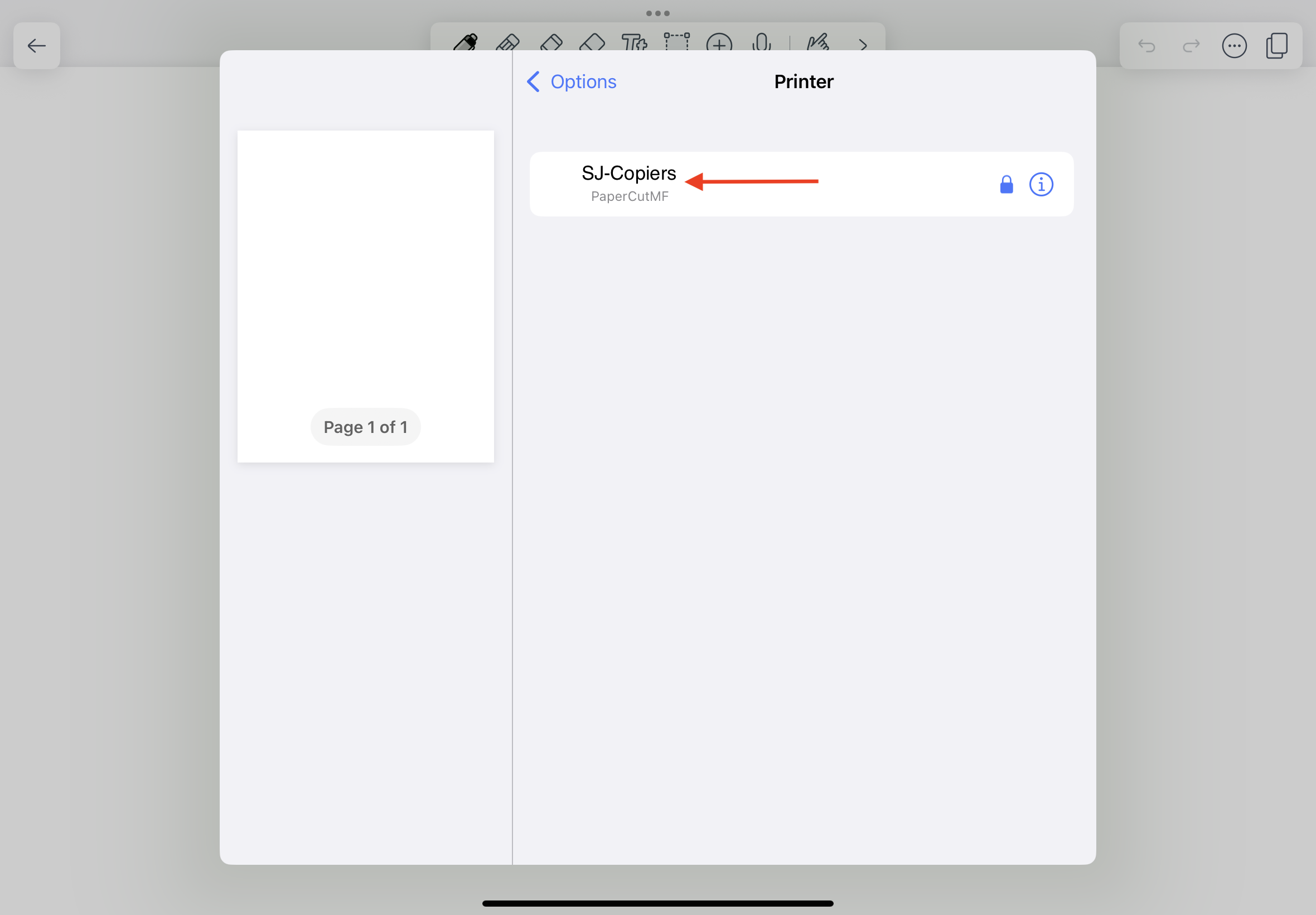
If it's your first time printing, you'll need to select the printer. Tap on the Printer field
Tap the printer labeled SJ-Copiers
On the login window that pops up, you'll need to enter the first part of your email for the username, and your email password as the password. Tap OK and your print job will be sent
Now go to the release station and either scan your ID or type in your ID number. Select your print job, check or uncheck the double-sided option, and tap Print.
If you need something printed in color: send your print job as usual, but scan your ID at the Sharp copier located next to the printers. Uncheck the 'print in grayscale' box after selecting your print job.