
Printing from Library Computers
Edited
Log in to the iMac using your student email and password
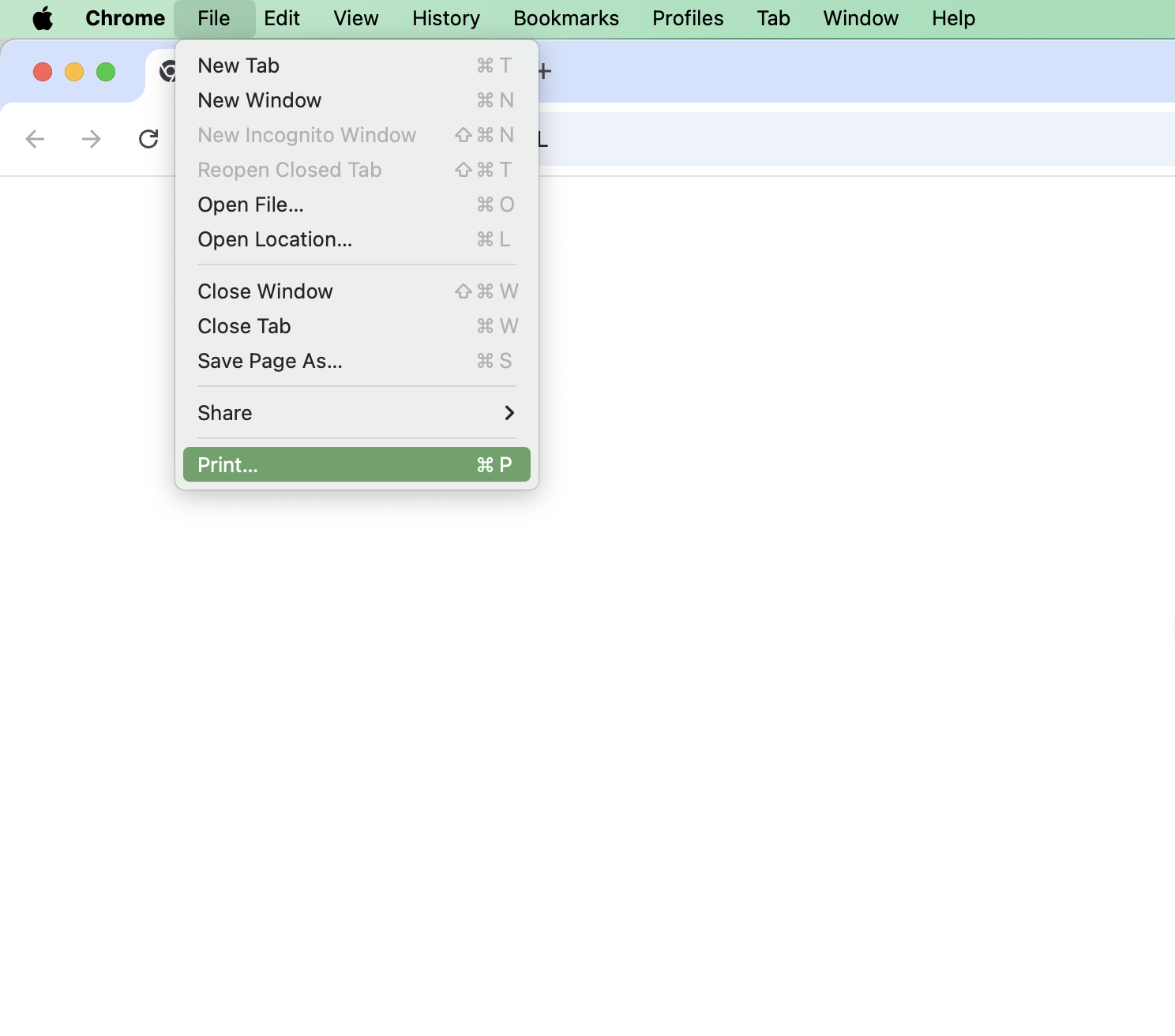
Open the file you want to print, and click File in the top left, followed by Print. The below example is printing a webpage in Chrome
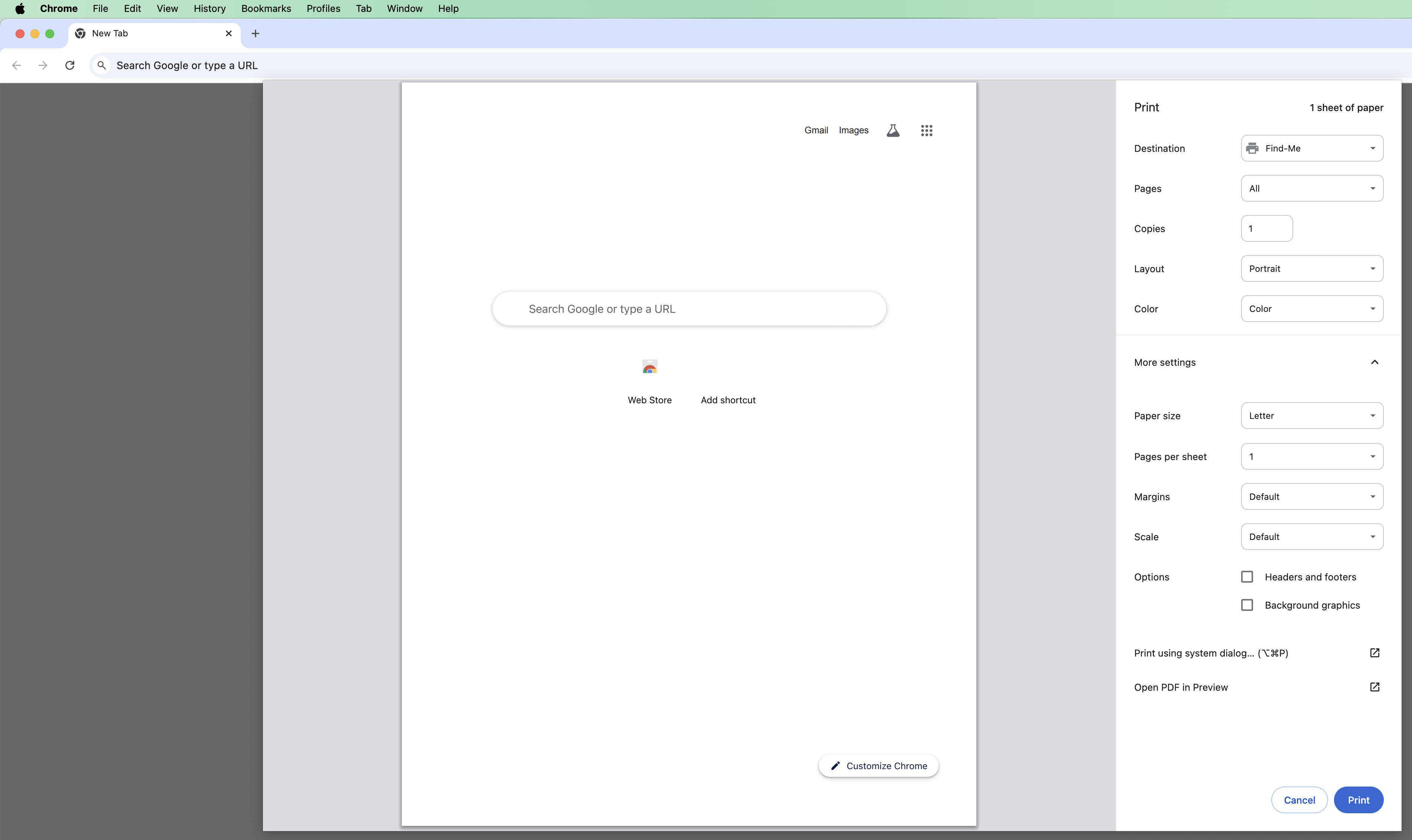
The print dialogue will open it up. Depending on what program you're printing from, this can look a little different. The same concept applies - change any needed printing options (number of copies, layout, etc.) and then click Print
If a login window opens, you'll enter the first part of your email (everything before the @) along with your email password
Now you can go to the copier and either scan your ID or type in your ID number. Select your print job, check or uncheck double-sided, and tap Print.
Was this article helpful?
Sorry about that! Care to tell us more?